App tour
Every screen of the studio, with a real screenshot and what you do there. For the step-by-step of a whole video, see Using the studio.
Produce
My videos
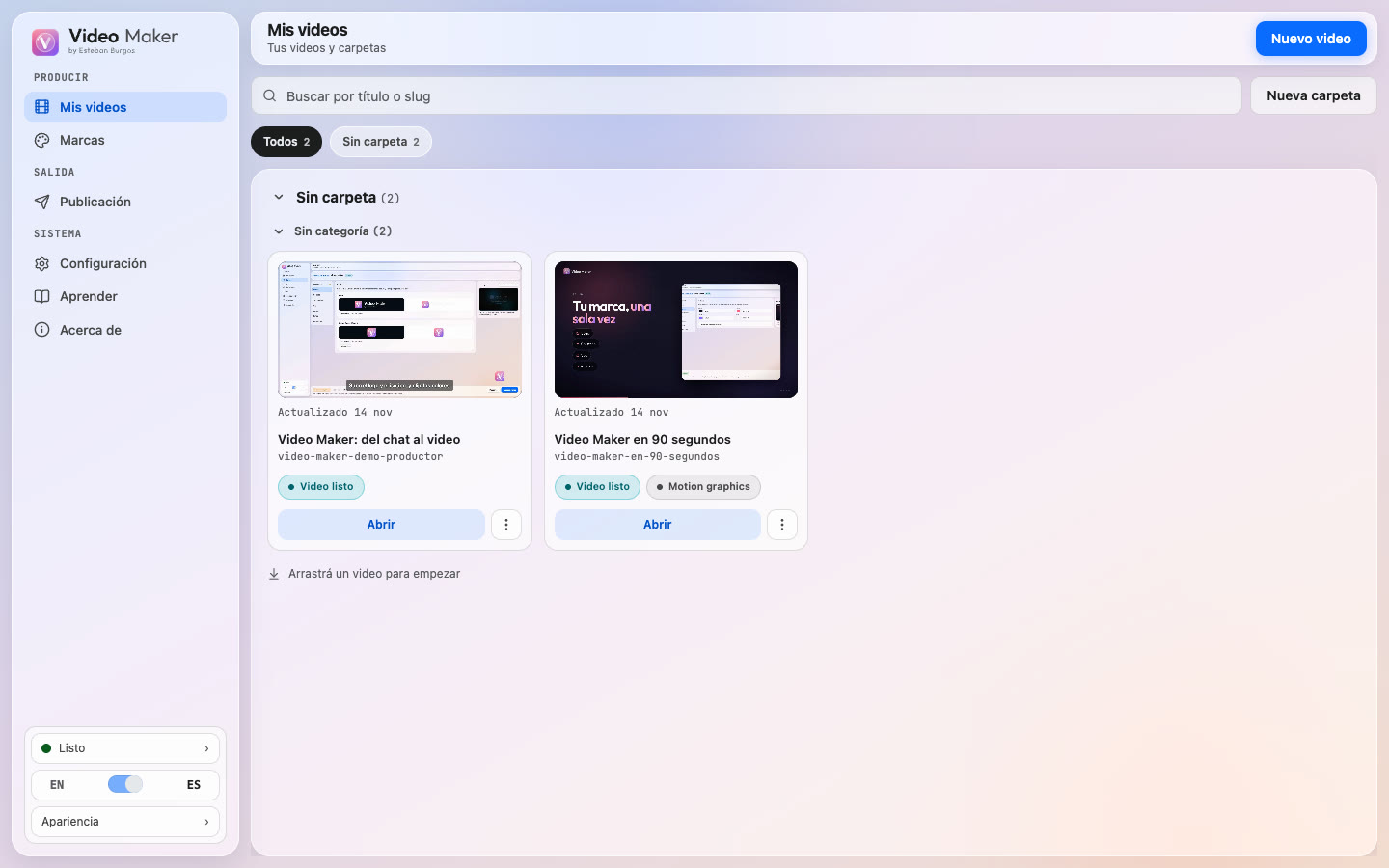
The home screen: all your videos, with their thumbnail, the path they were built with and whether a finished video is ready.
- Search by title or by the video’s short name.
- “New folder” groups videos by client or campaign, with categories inside.
- “Open” enters the video; each card’s menu assigns it to a folder, archives it or deletes it.
New video
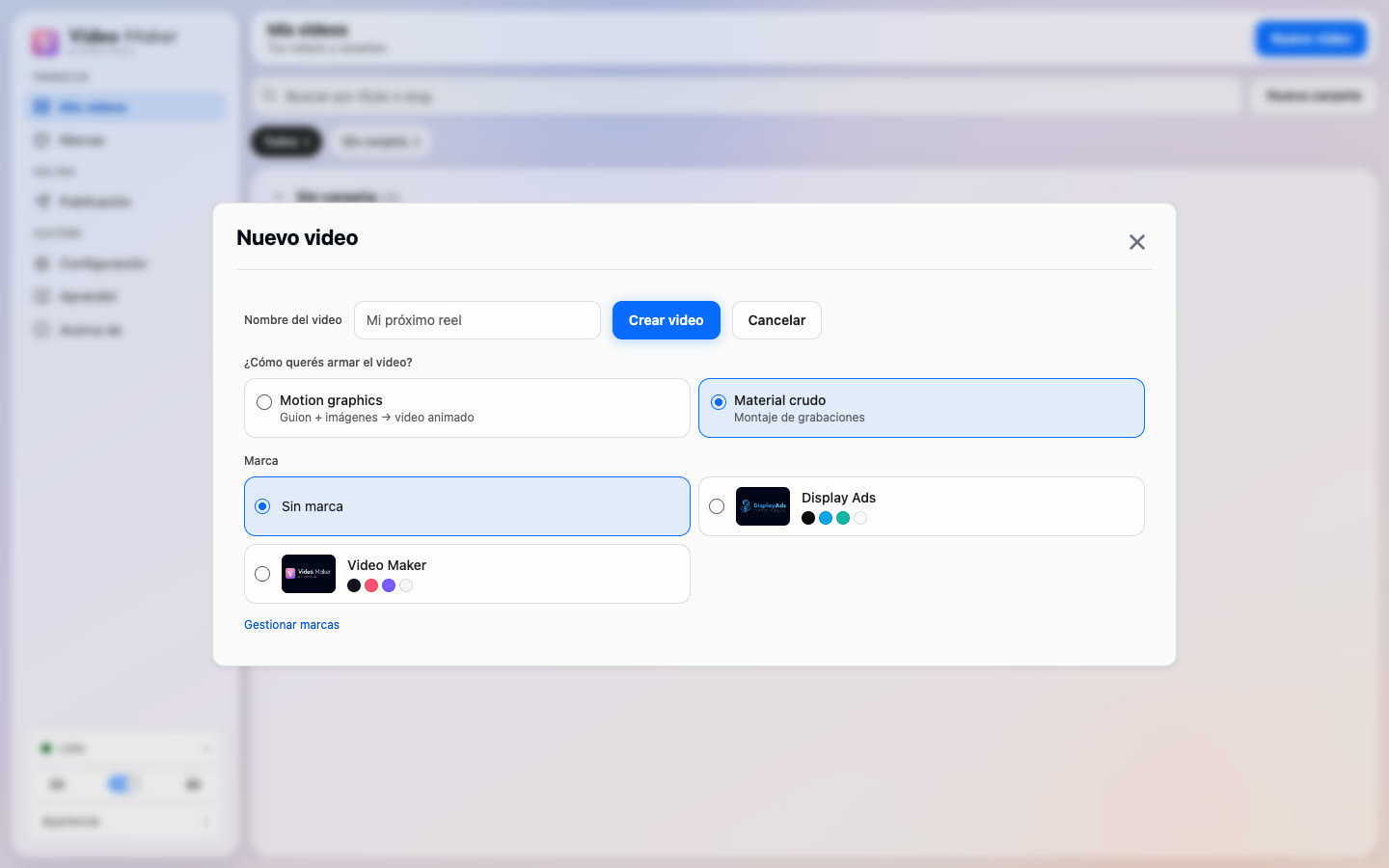
Name it, pick the path and, optionally, a brand. The brand can be changed later.
- Motion graphics: script and images, and the studio animates the scenes.
- Raw footage: your recordings, edited, captioned and voiced.
- “Manage brands” opens the Brands page without losing what you typed.
Inside a video
Producer
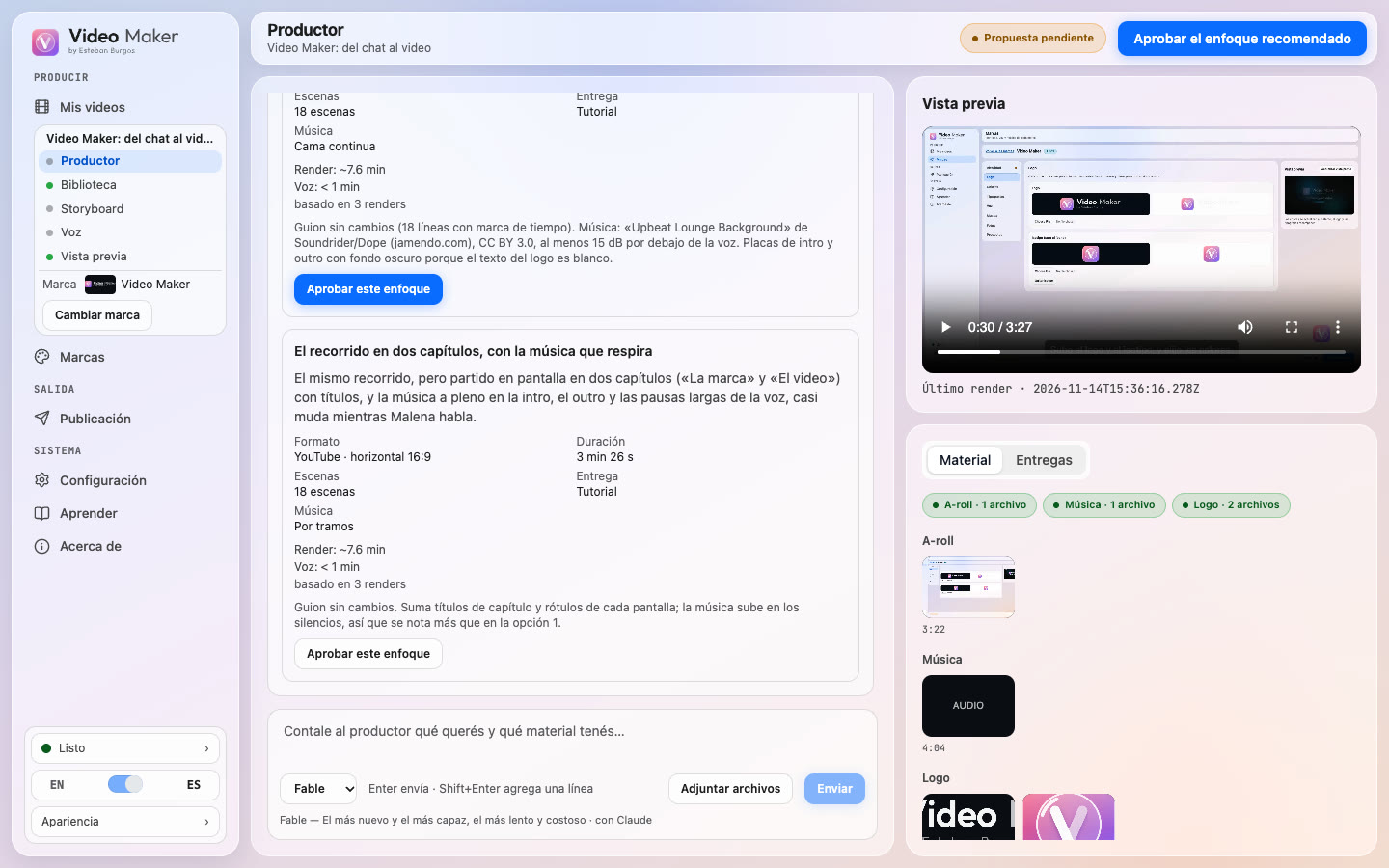
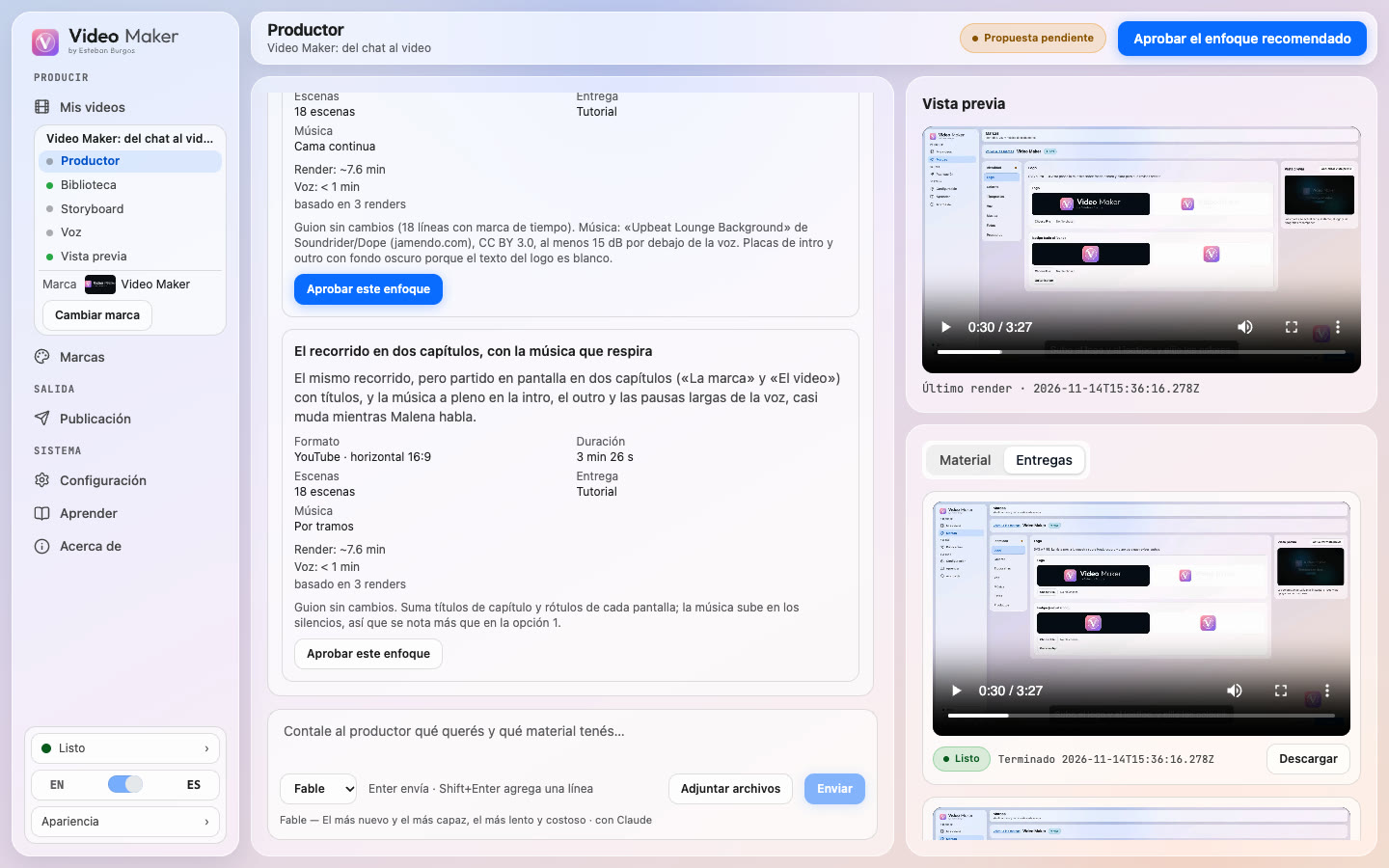
The heart of every video: tell it what you want and the producer reviews the material, writes the proposal, edits, renders and reviews the result.
- While it works it shows every step it takes, in the interface language.
- Before the full render it proposes two or three approaches (format, length, scenes, music); “Approve this approach” is your OK.
- Below the chat you pick the AI model for the turn (for example Fable, Opus, Sonnet or Haiku) and attach files.
- On the right: the preview of the latest render and the Material and Deliveries tabs.
Deliveries
Every finished render stays here with its date, ready to watch or download. Earlier versions are kept.
- The latest one comes first.
- “Download” saves the final MP4, mixed at −14 LUFS.
Library
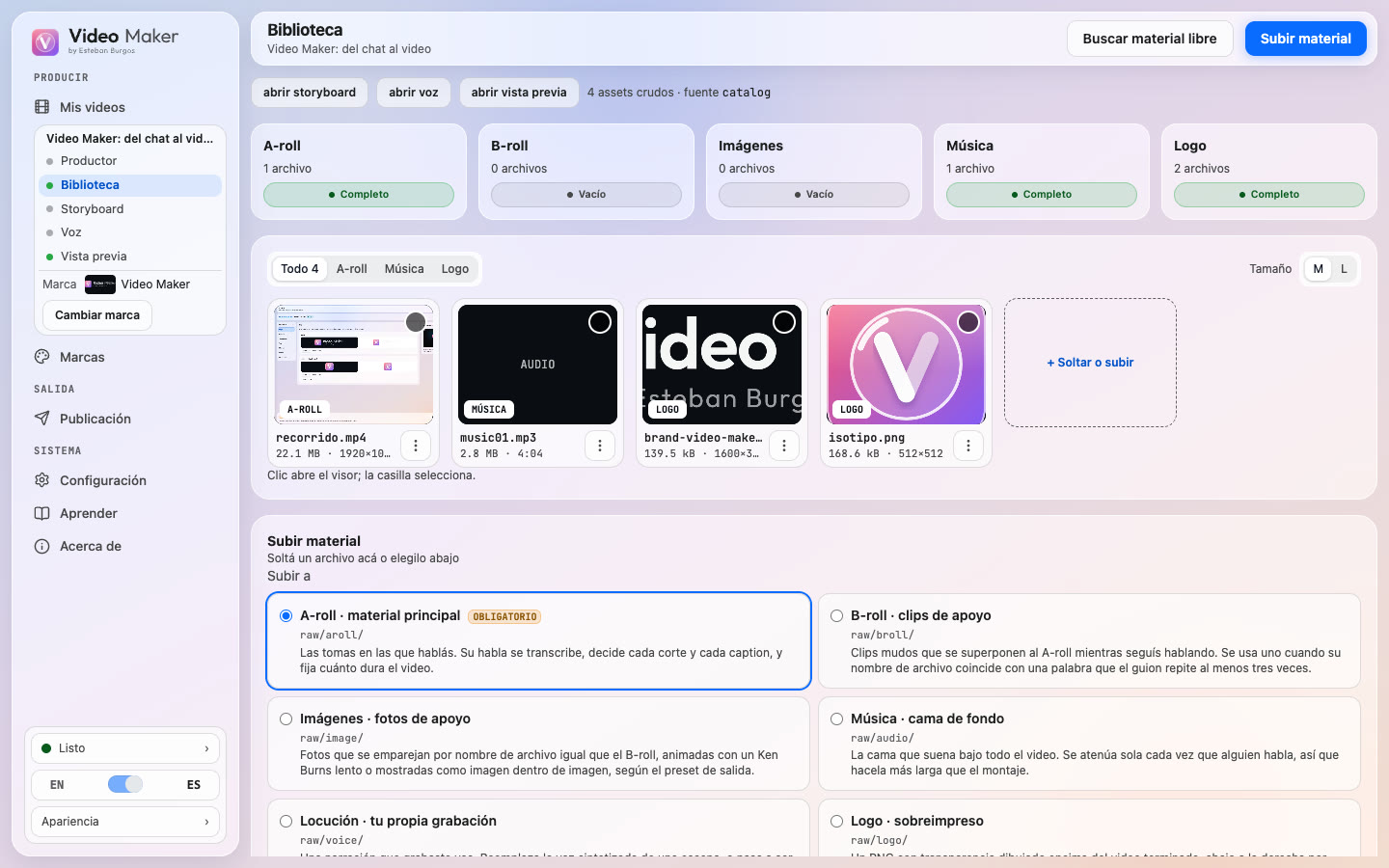
All the video’s material, grouped by the role it plays, with thumbnails and the status of each group.
- When uploading you pick the role: A-roll (main footage), B-roll (supporting clips), images, background music, your voice-over or the logo.
- “Find free material” brings clips, photos and music under free licenses and keeps their credit.
- Click a file to open it in the viewer, with its role, the producer’s review and a download.
Preview and render settings
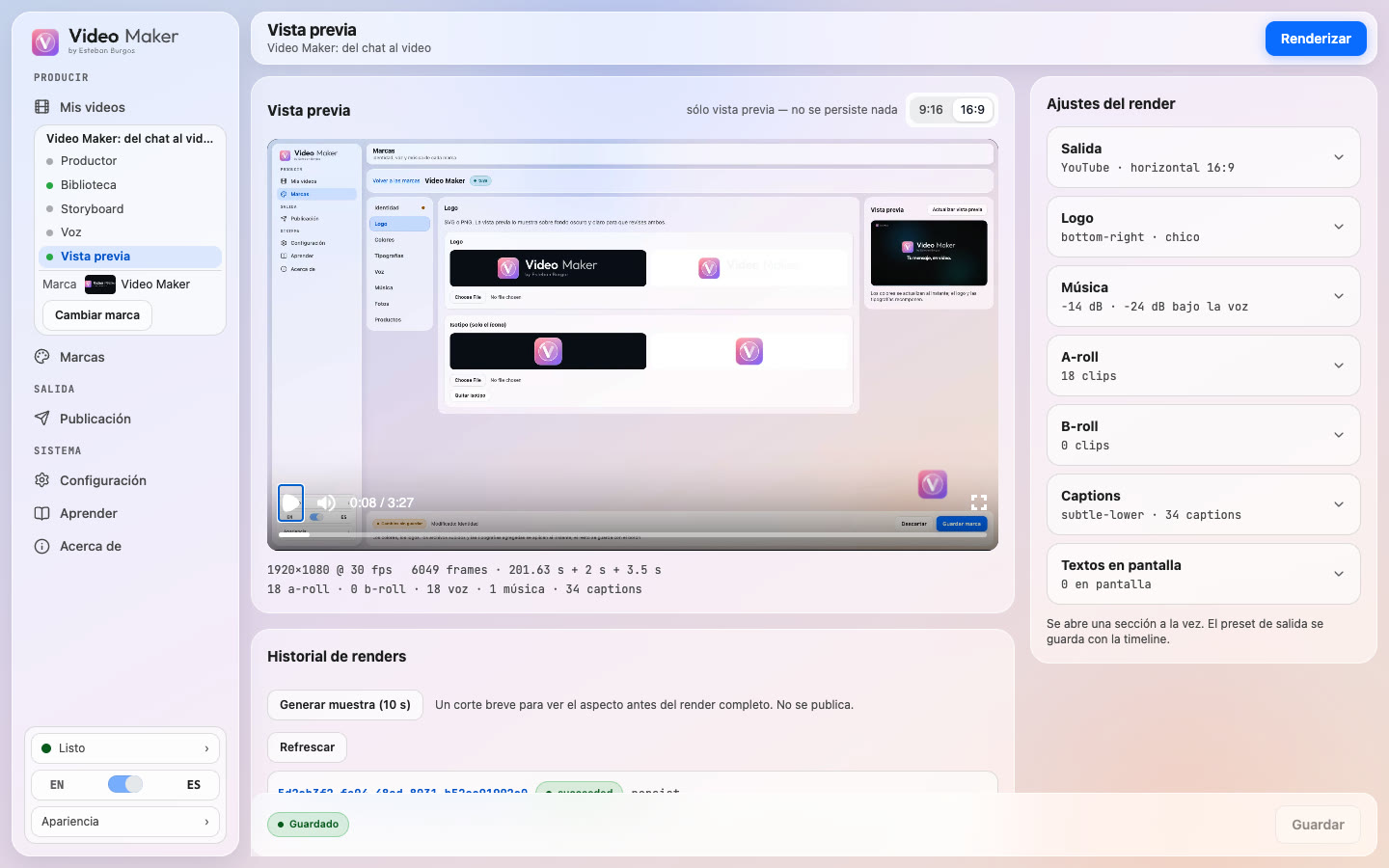
The edit plays instantly, with no render. On the right are the settings the producer chose, which you can change by hand.
- Output (YouTube 16:9 or vertical 9:16), logo, music level under the voice, clips, caption style and on-screen text.
- “Generate sample (10 s)” renders a short piece to see the real look before the full render.
- The history keeps every render with its status.
Motion graphics videos
Motion: the brief
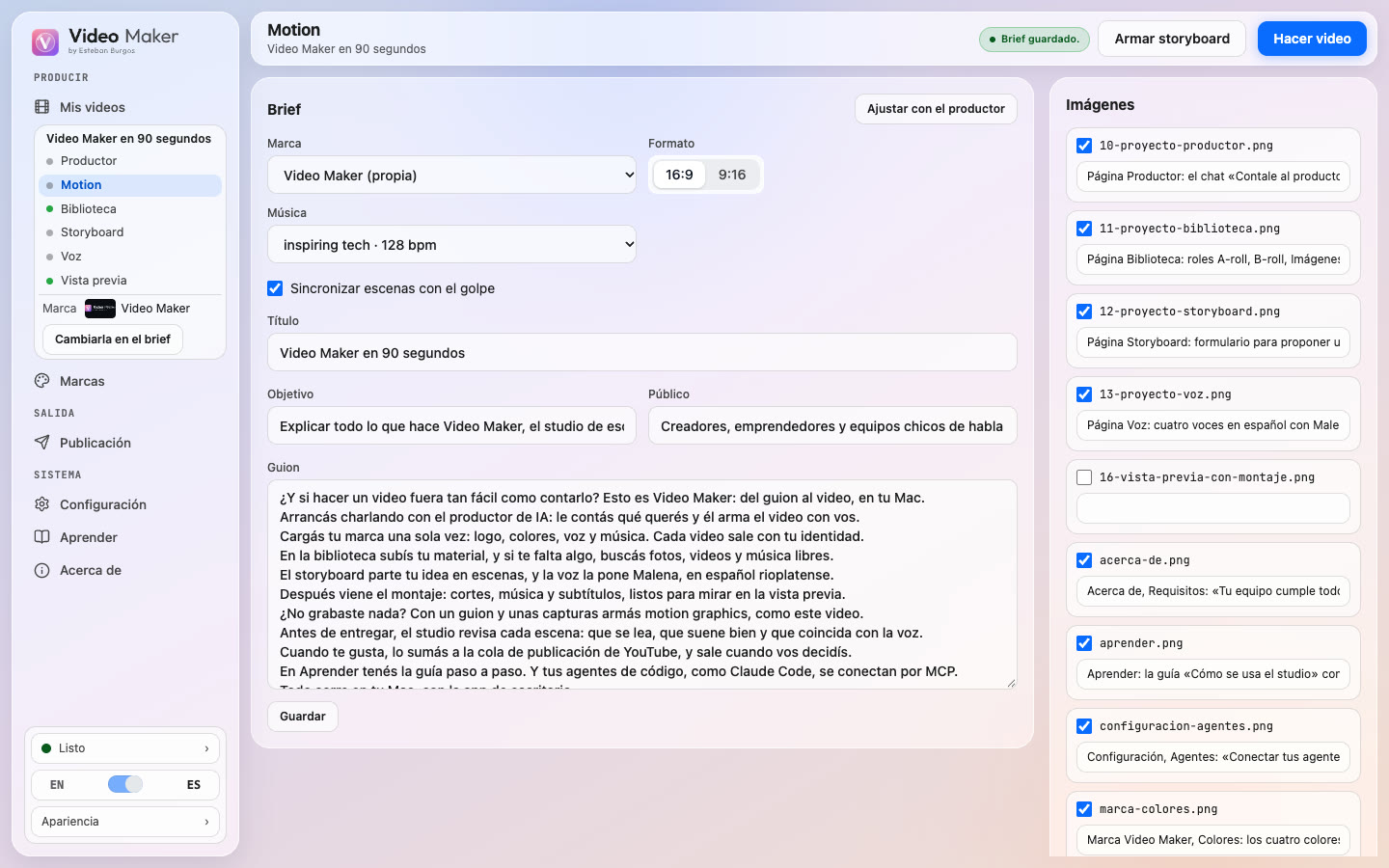
Where you describe the video: brand, format, music, goal, audience, script and the images it may use.
- Each image carries one line saying what it shows; the producer picks by that description.
- “Sync scenes to the beat” cuts to the music.
- “Build storyboard” and “Make video” run the path on their own; “Adjust with the producer” goes back to the chat.
Storyboard
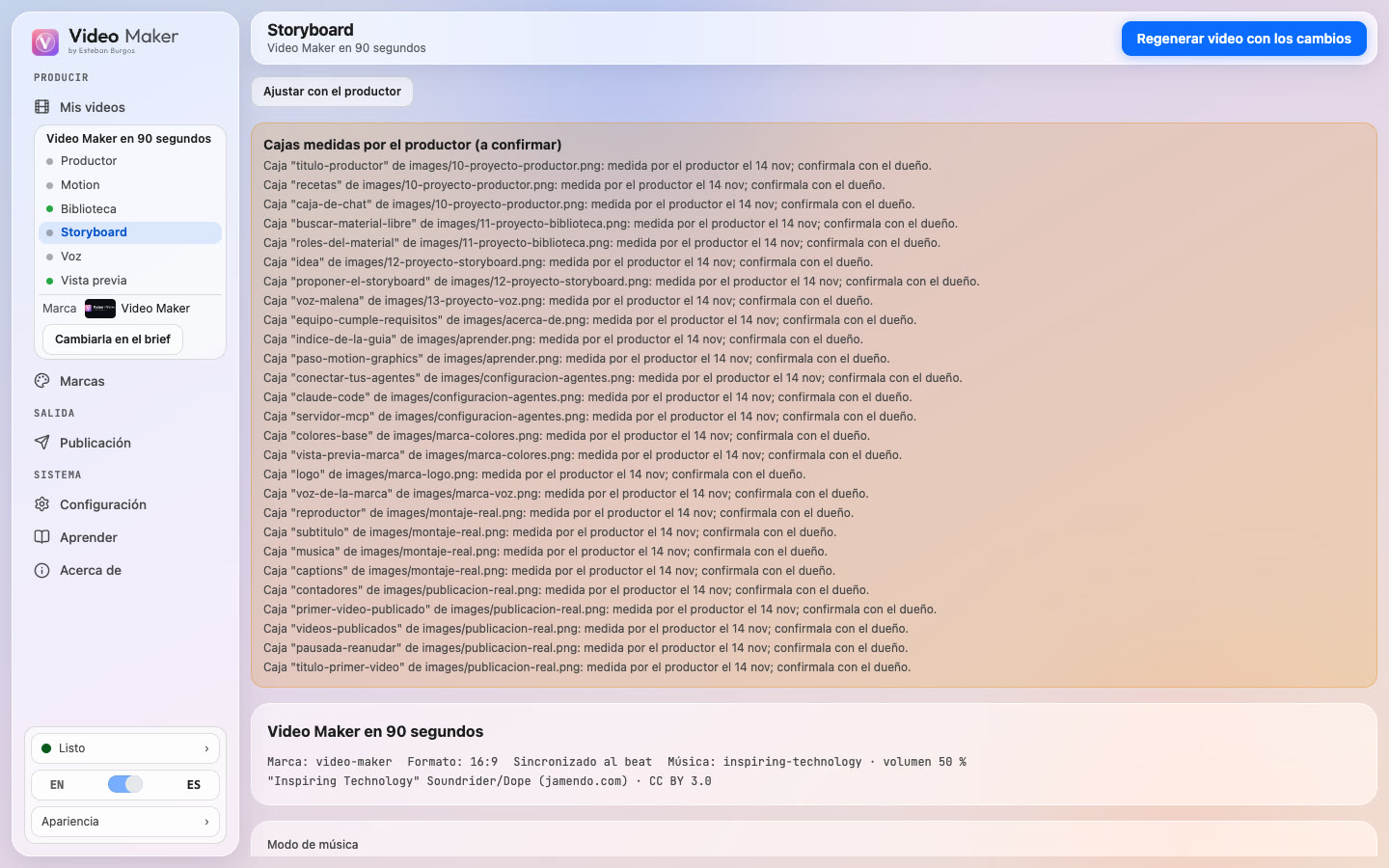
The scenes the AI built, with their text, timing and images. Reviewing them before the full video is cheap.
- Edit by hand or ask the producer.
- “Regenerate video with the changes” remakes the video with your corrections.
Voice
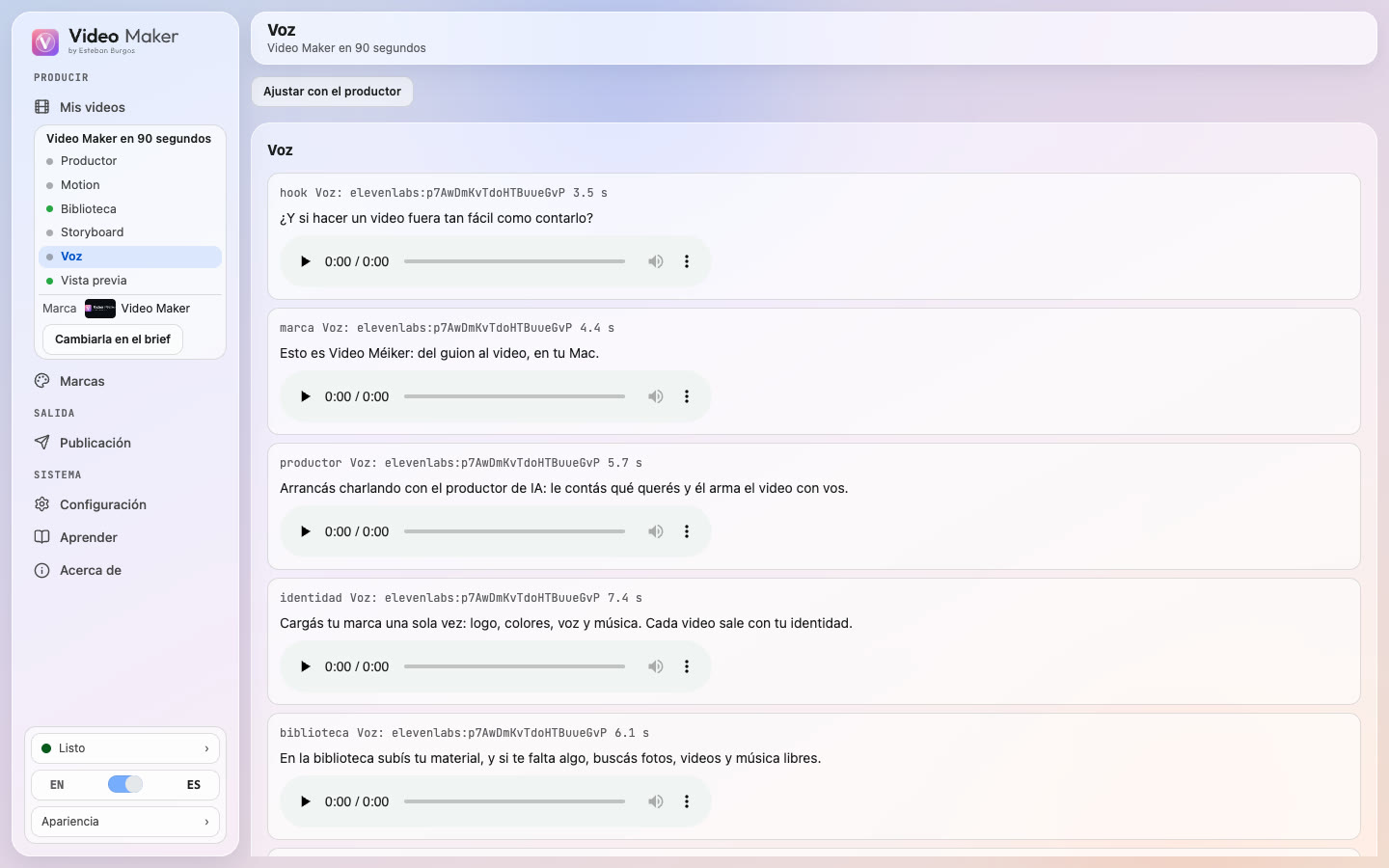
Every script line with its own audio to listen to separately.
- The voice comes from the brand or the settings: local Spanish voices or ElevenLabs.
- The producer can change the pace or tone of one line without redoing the rest.
Preview of the animated video
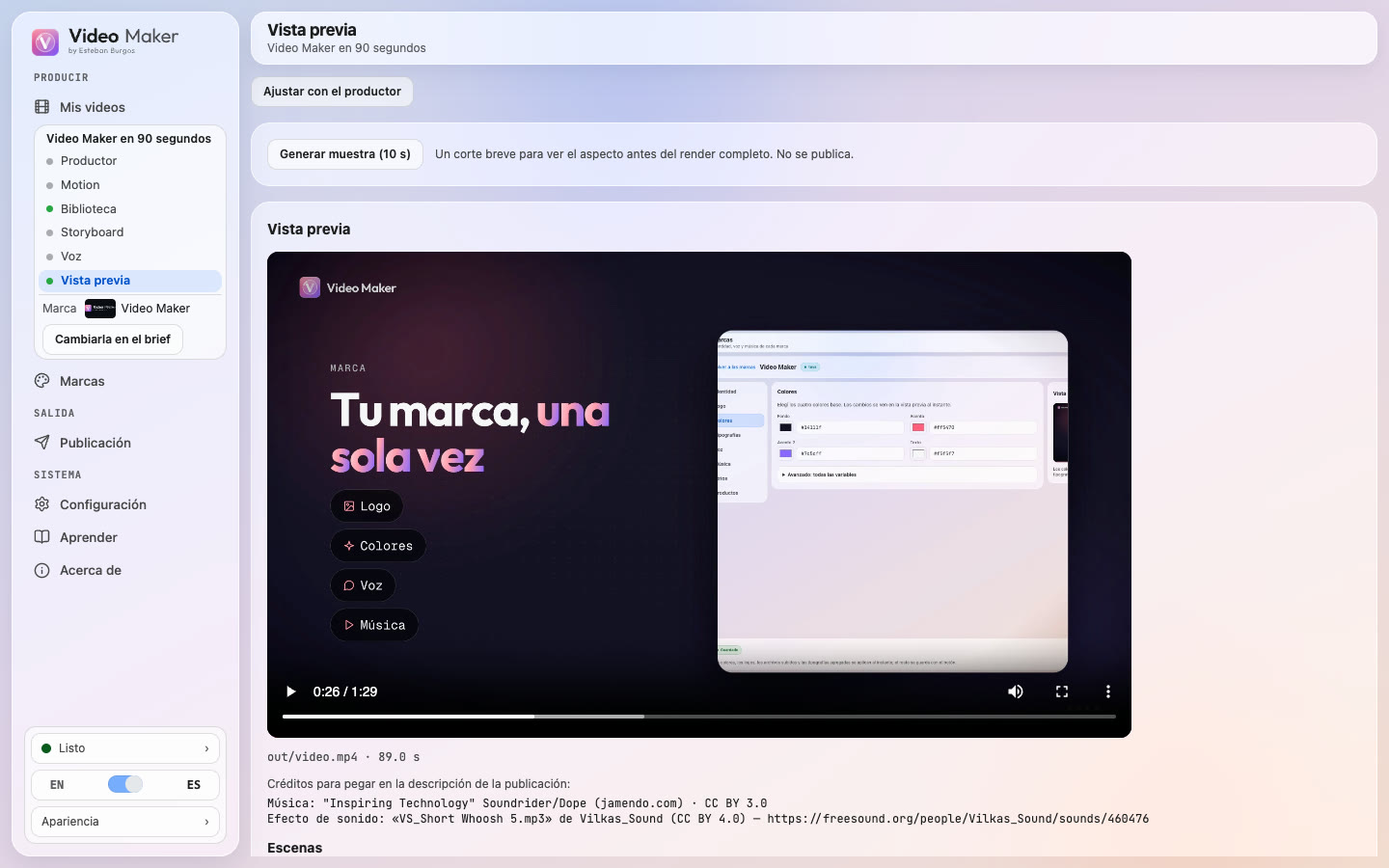
The rendered video, with the credits ready to paste into the description and the list of scenes with their timing.
- “Review again” repeats the automatic audio and image review.
- “Publish to YouTube” adds it to the publishing queue.
Brands
Brands
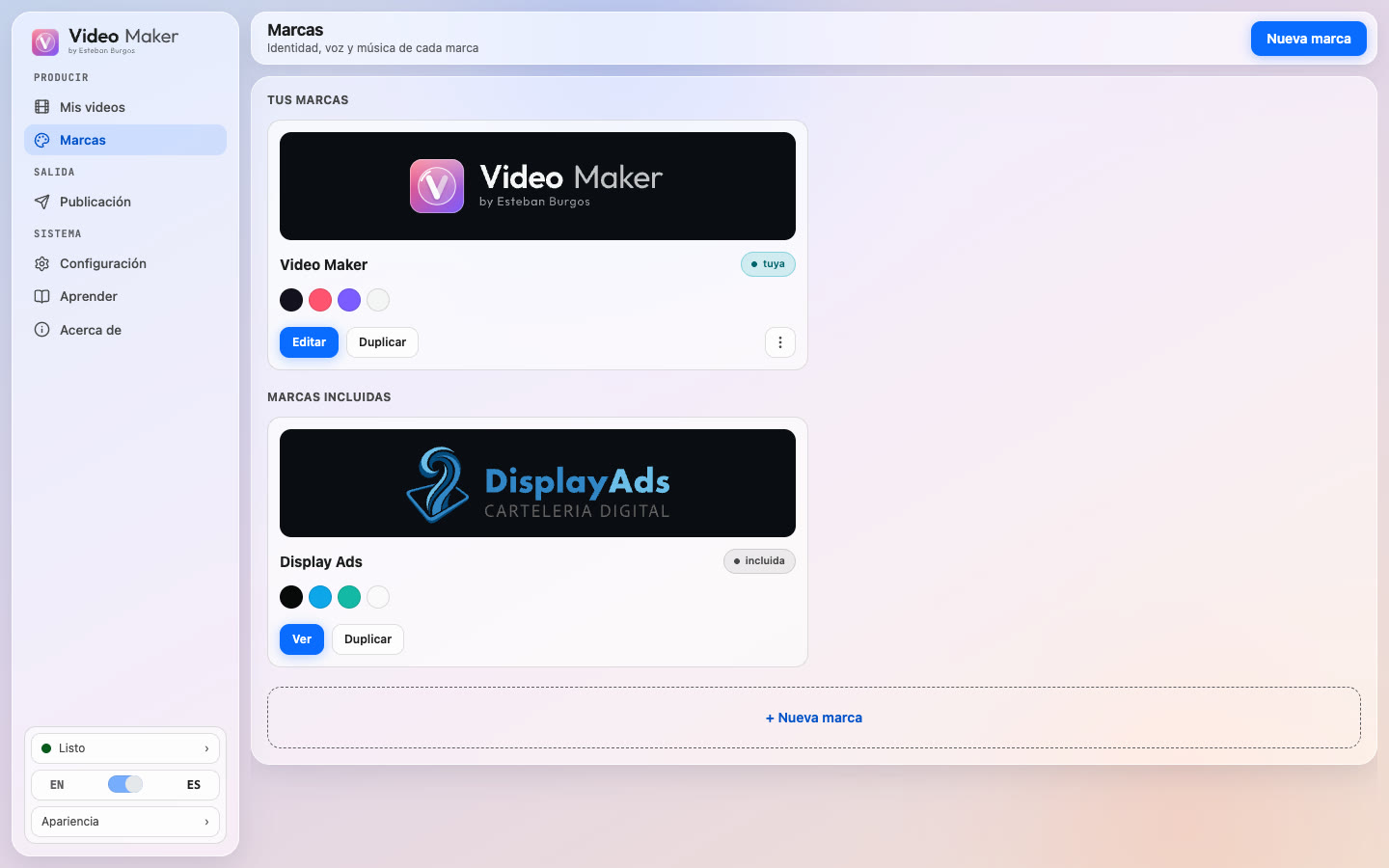
Your brands and the ones the studio ships with. A brand is built once and used in every video.
- “Duplicate” starts from an existing brand.
- Built-in brands can be viewed and duplicated, not edited.
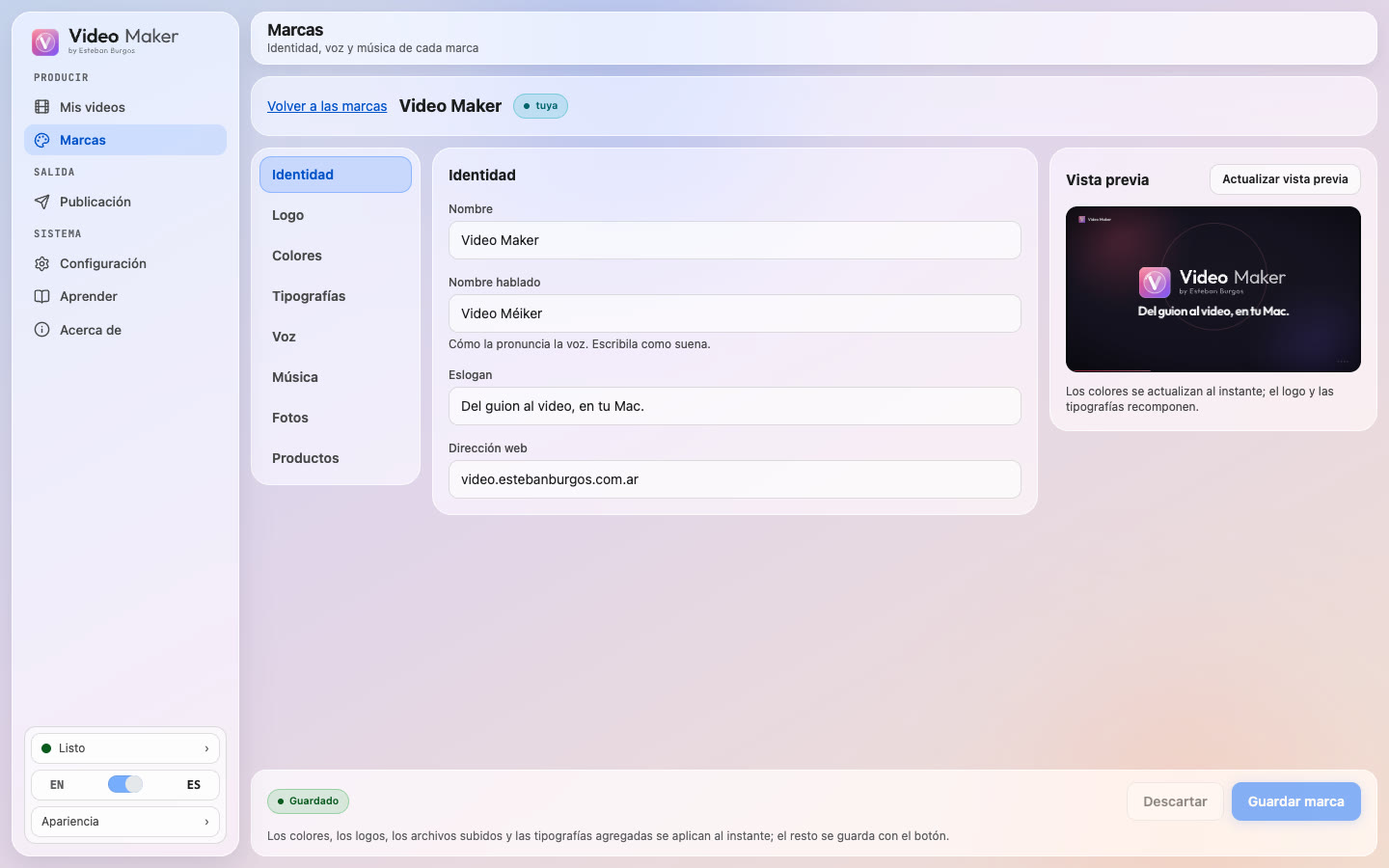
Brand editor
Identity, logo, colors, fonts, voice, music, photos and products, with a preview that updates instantly.
- The spoken name tells the voice how to pronounce the brand.
- Photos and products stay at hand for any video of that brand.
Publishing
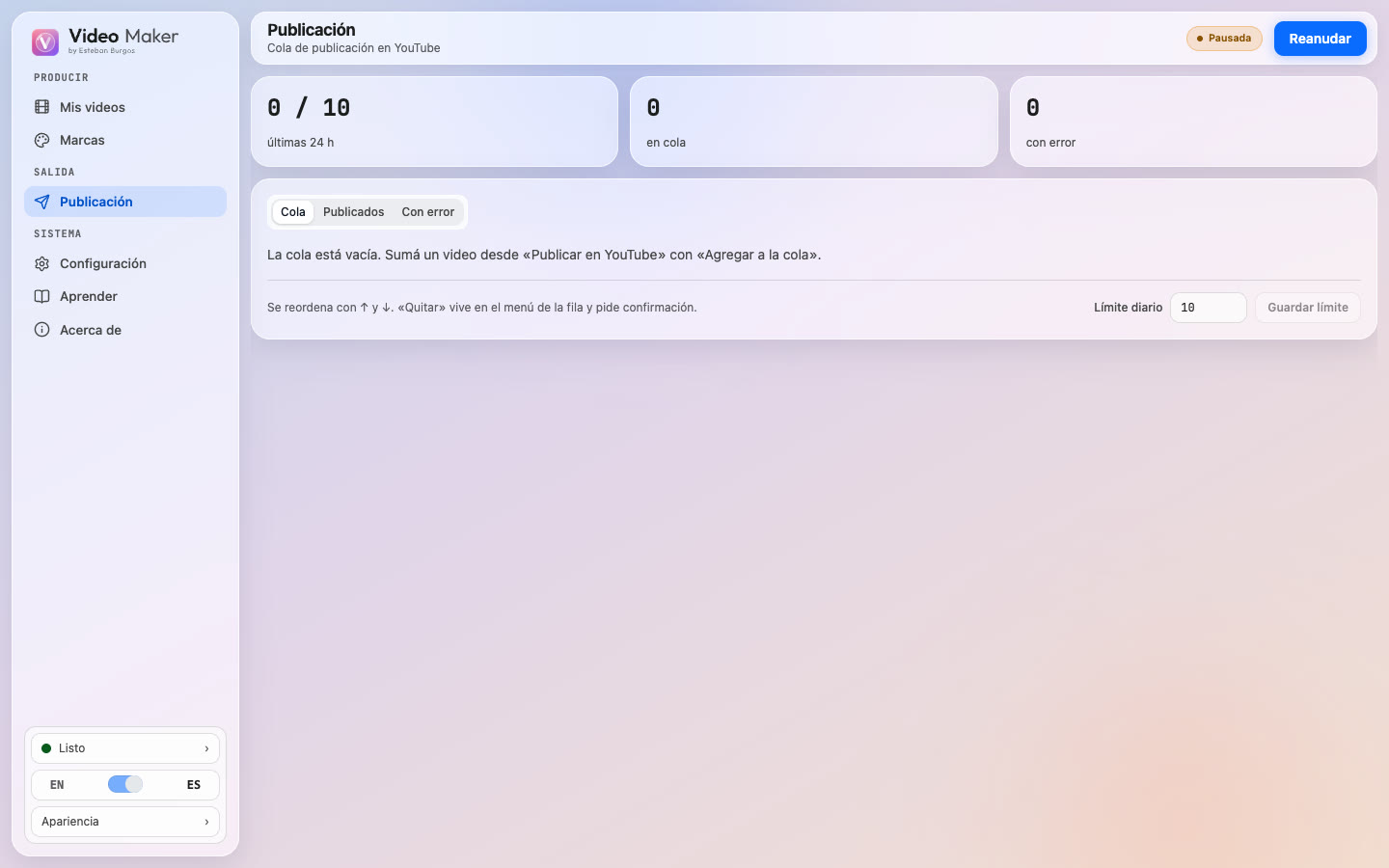
YouTube queue
Videos you send to YouTube go out one at a time, within a daily limit. The queue can be paused and reordered.
- Queue, Published and Failed tabs.
- The producer proposes the title, description and credits; you review them before queueing.
Settings
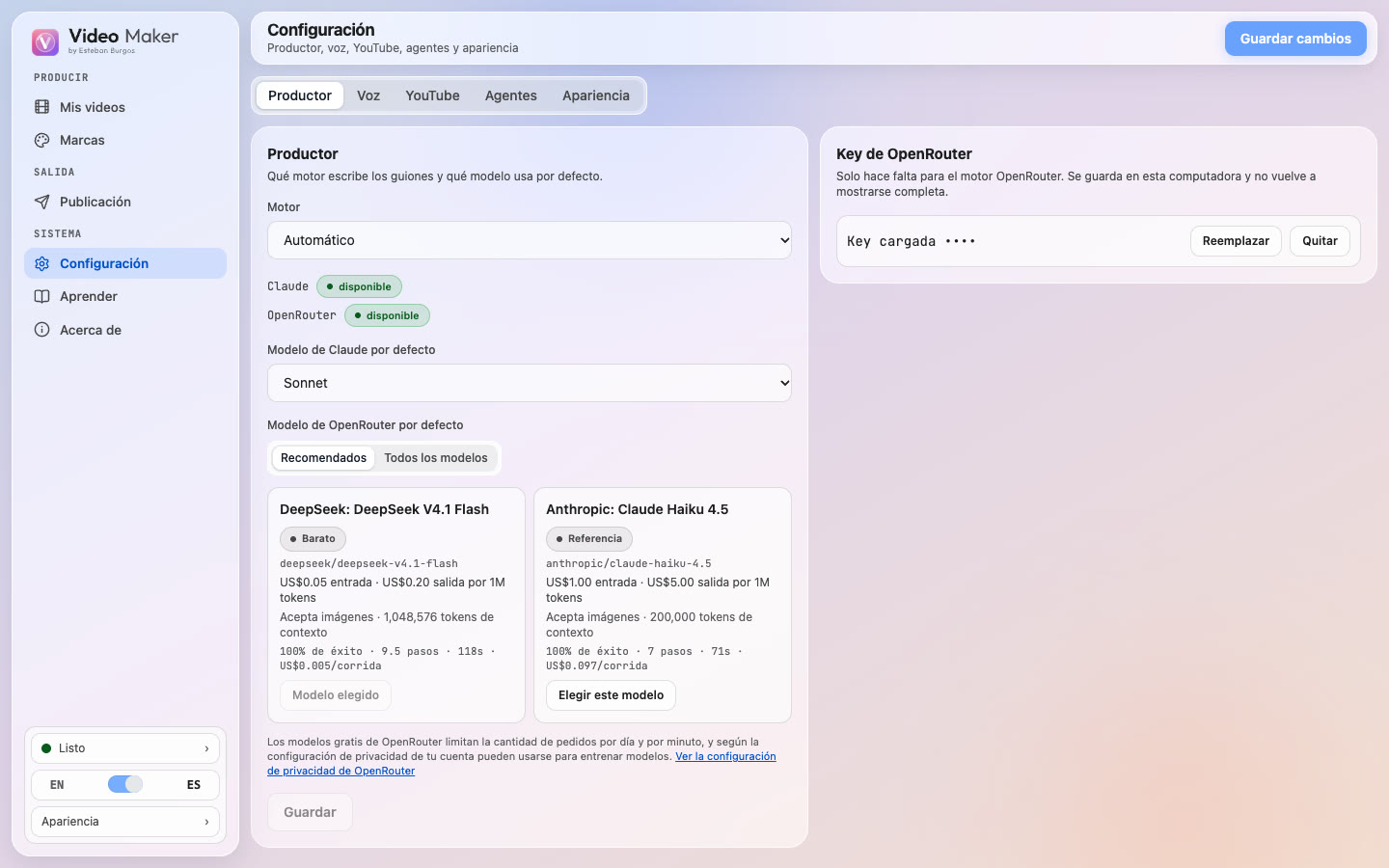
Producer
Which AI engine the producer uses: Claude Code with your subscription or OpenRouter with your key, and each one’s default model.
- The key is stored on your Mac and never shown in full again.
- OpenRouter models are filtered between recommended and all.
Voice, YouTube and appearance
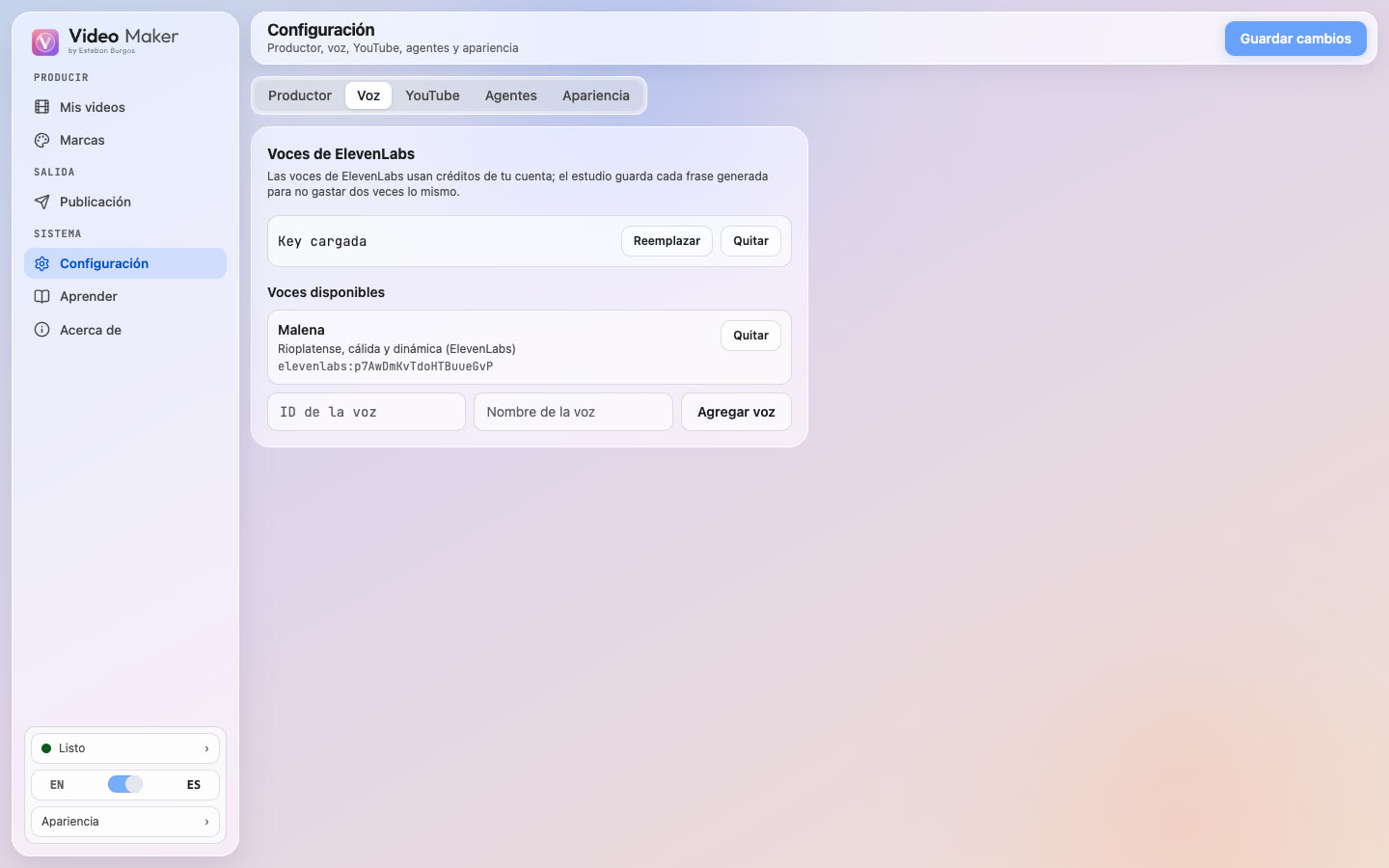
The ElevenLabs voices you want at hand, the connection to your YouTube channel and the look of the app.
- Voices are added by their ElevenLabs ID and a name.
- Appearance: light, dark or system theme, and glass or solid material.
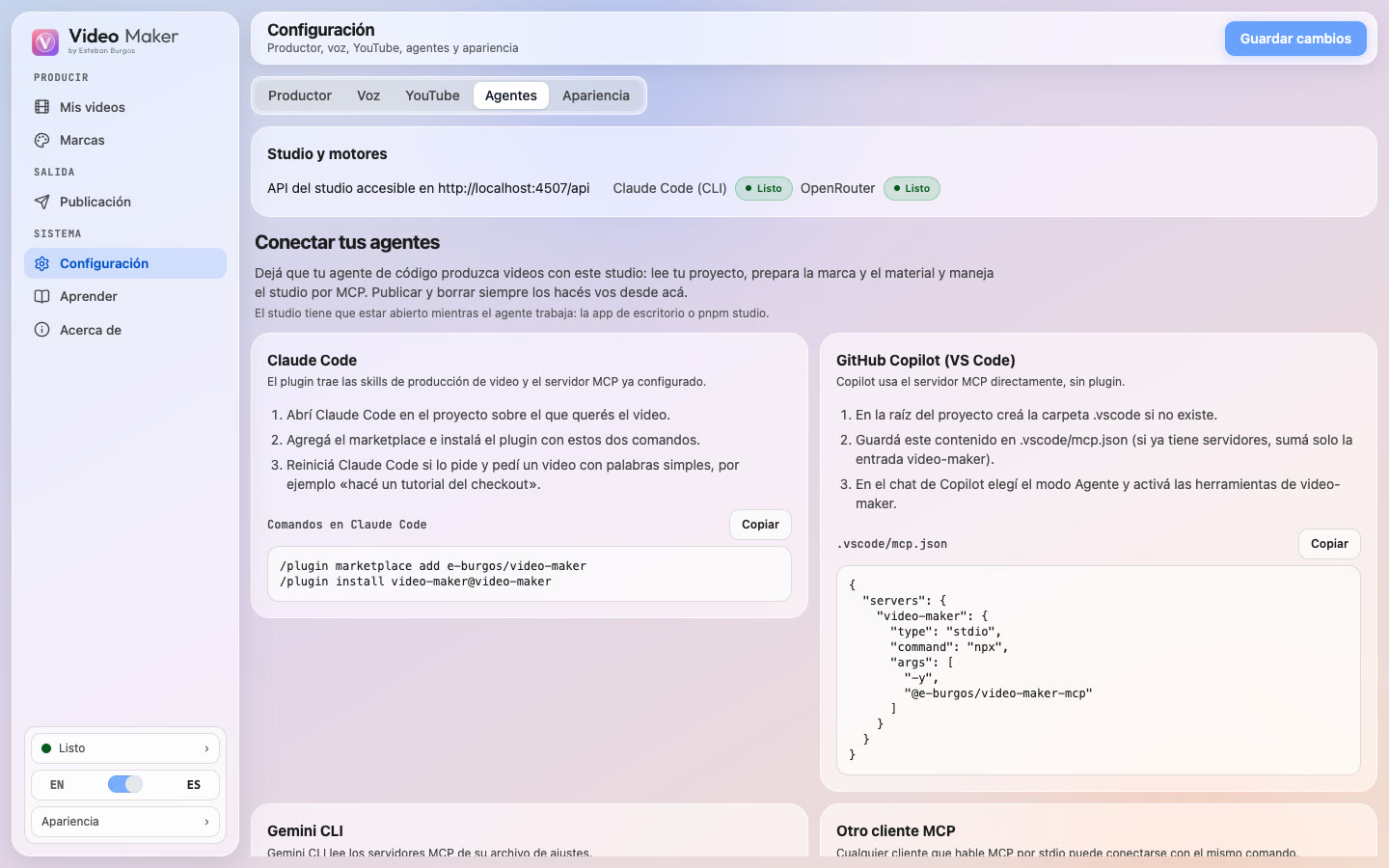
Agents
How to connect your coding agent to the studio: ask for a video from your project and the agent prepares the brand and the material.
- Steps and commands for Claude Code, GitHub Copilot, Gemini CLI and any MCP client.
- Publishing and deleting are always yours, from the studio.
Help
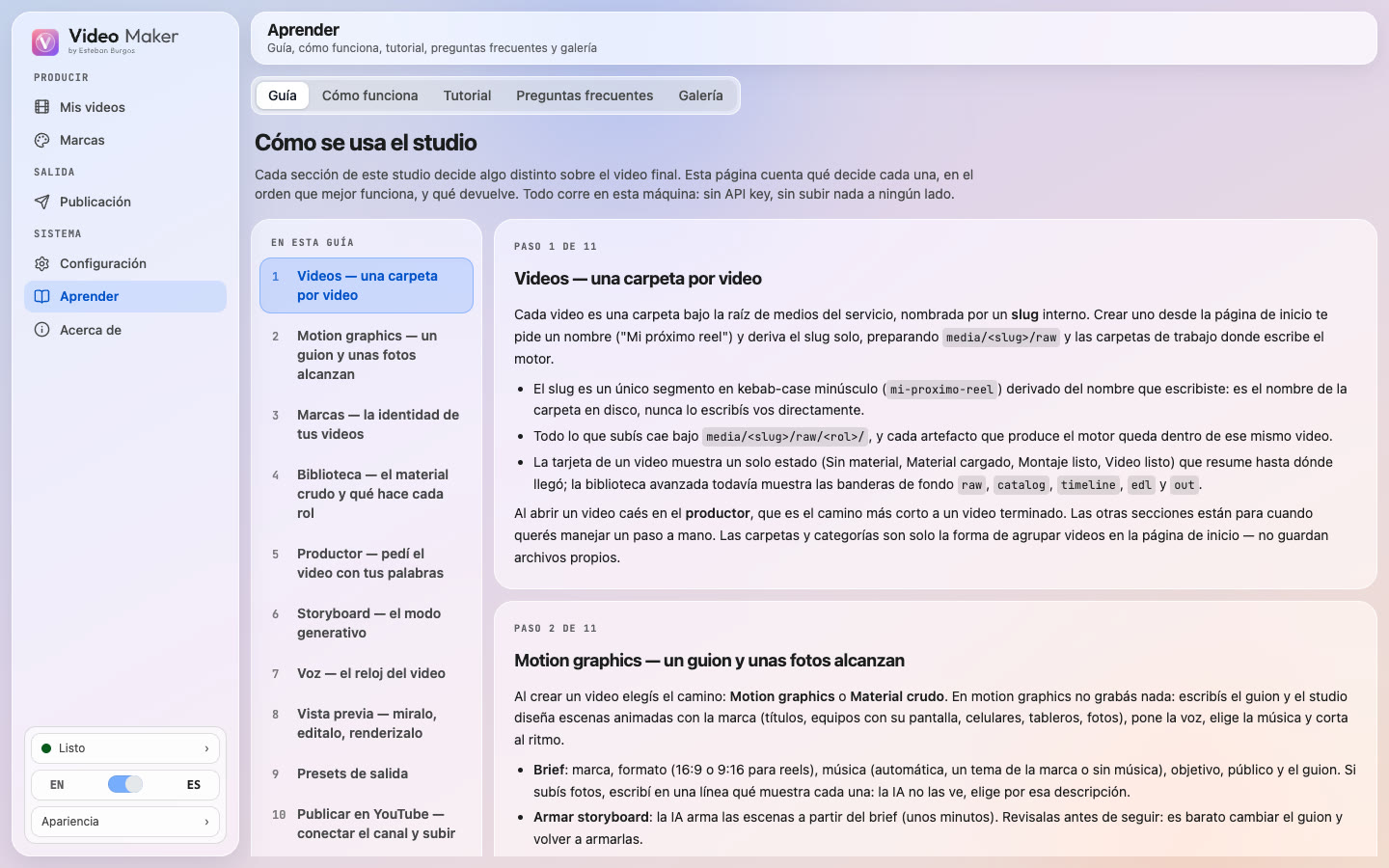
Learn
The user guide inside the app, offline: step-by-step guide, how it works, the video tutorial, FAQ and a gallery of screenshots.
About
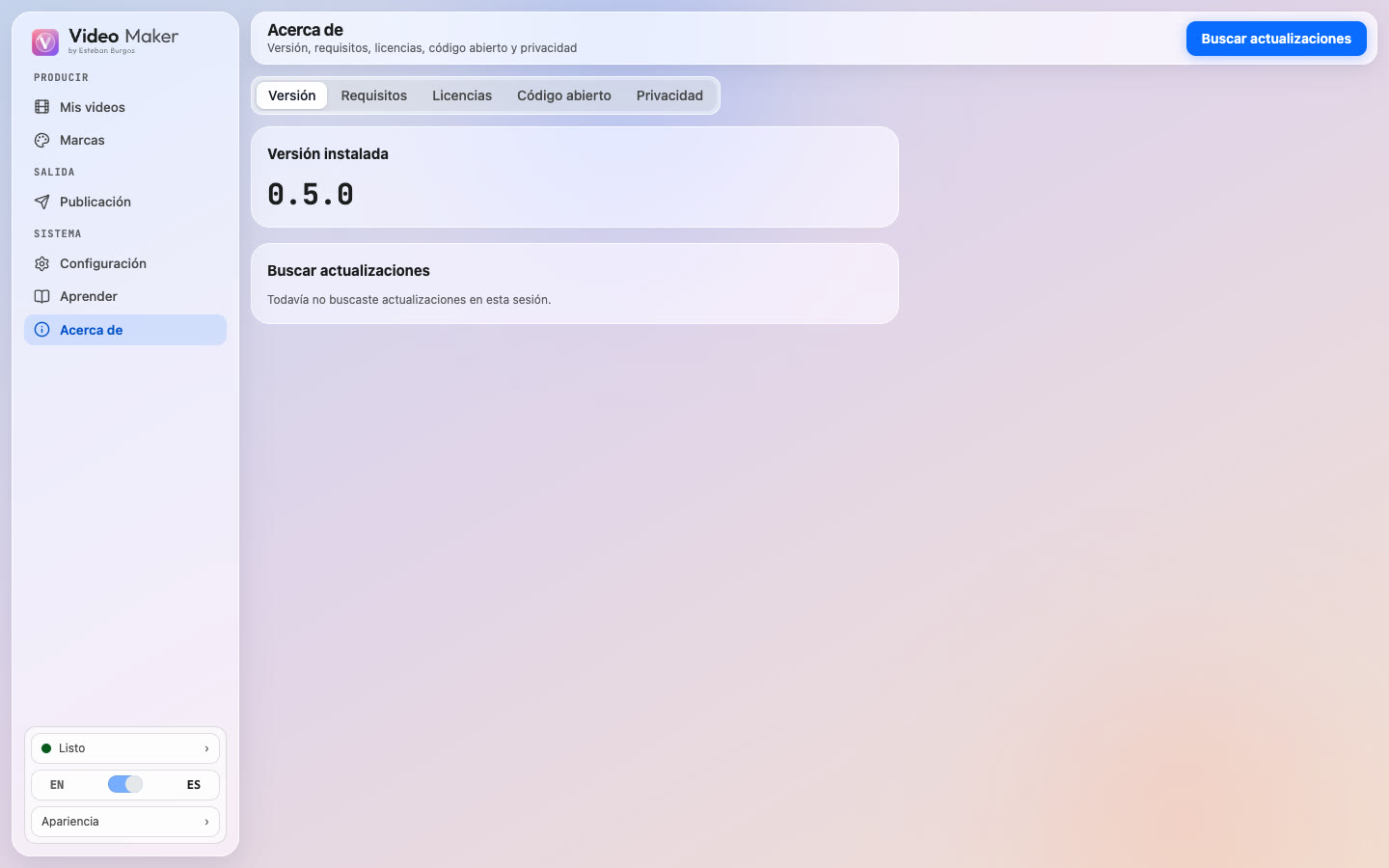
The installed version, “Check for updates”, requirements, licenses, open source and privacy.